
A wedding invitation link for every guest means each person you invite gets their own link, with their name on the envelope, their own seat limit, and a reply that comes back tied to them. You add your guests to a list, press "Send" next to a name, and WhatsApp opens with a ready message. You always know who received a link and who has answered. Here is how it works in practice.
Why give every guest their own link? #
One shared link for everyone is easy, but it has costs. A guest opens a general card with no name on it. Anyone can forward it. Replies arrive without a way to know who sent them, and you cannot limit seats per household.
A personal link fixes these points:
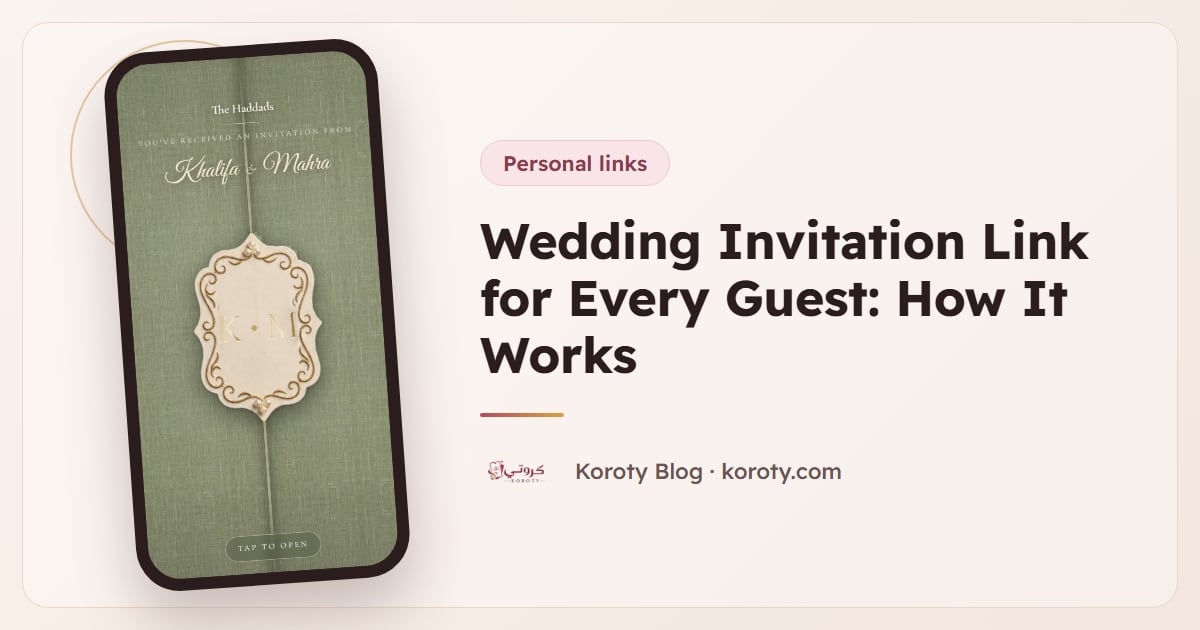
- Their name on the envelope. The guest sees "Aunt Rosa" or "The Hamilton Family" before the invitation opens.
- A seat limit for that guest. If you invited a couple, they can reply for two, not five.
- Replies tied to the right guest. There is no matching names by eye.
- You know who received a link. The dashboard shows how many guests have received theirs, so you can tell "hasn't answered" from "never got it".
How do you add guests to Koroty? #
There are four ways, and you can mix them:
- One by one. Type a name and, if you like, a seat count.
- Paste a list. Write the names, with a number after a comma for the seats.
- Pick from phone contacts. This works on supported phones, such as Android.
- Import Excel or CSV. Useful when a parent keeps a spreadsheet.
You can also create groups, such as "Bride's family" or "Work friends". Groups only organize your list. Every guest who opens an invitation sees the whole invitation, so if two events have different guest lists, they need two separate invitations.
For help building the list itself, see how to build a wedding guest list and manage wedding guest list online.
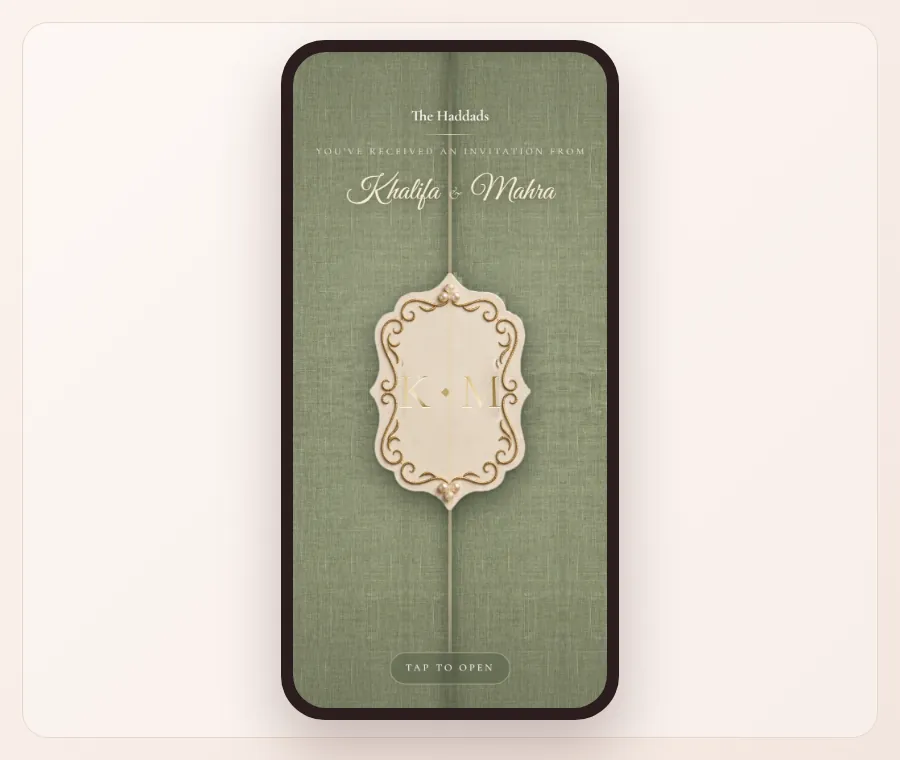
Each link opens on a screen like this one from Wisteria Villa, with the guest's name on it before two embroidered sage-linen doors open onto a villa with a fountain.
How do you send each link? #
Koroty doesn't email or text guests itself. You send each link through your own apps, and the guest list makes it quick:
- In the guest list, press "Send" next to a name.
- WhatsApp opens with a ready message that contains the guest's name and link. You can edit the message text.
- Send it.
- Press "Send to next" to jump to the next guest you haven't sent yet.
You can also copy any link and paste it into another app, such as a text message or email. For message wording and the full process, see how to send a wedding invitation on WhatsApp.
Send in batches. Start with the guests whose answers you need first, such as out-of-town family, then continue through the rest. The "Send to next" button keeps your place.
How does the seat limit work with personal links? #
You can set a limit for the whole invitation, or a limit for each guest. A personal link makes the per-guest limit meaningful: the guest sees a choice up to their number and cannot go past it. If you invite a guest alone, give them one seat. If you invite a couple, give them two. A family of five gets five.
This avoids the awkward situation of a reply for seven when you offered three. For how to word plus-ones kindly, see plus-one wedding invitation wording.
What does the guest see, and what do you see? #
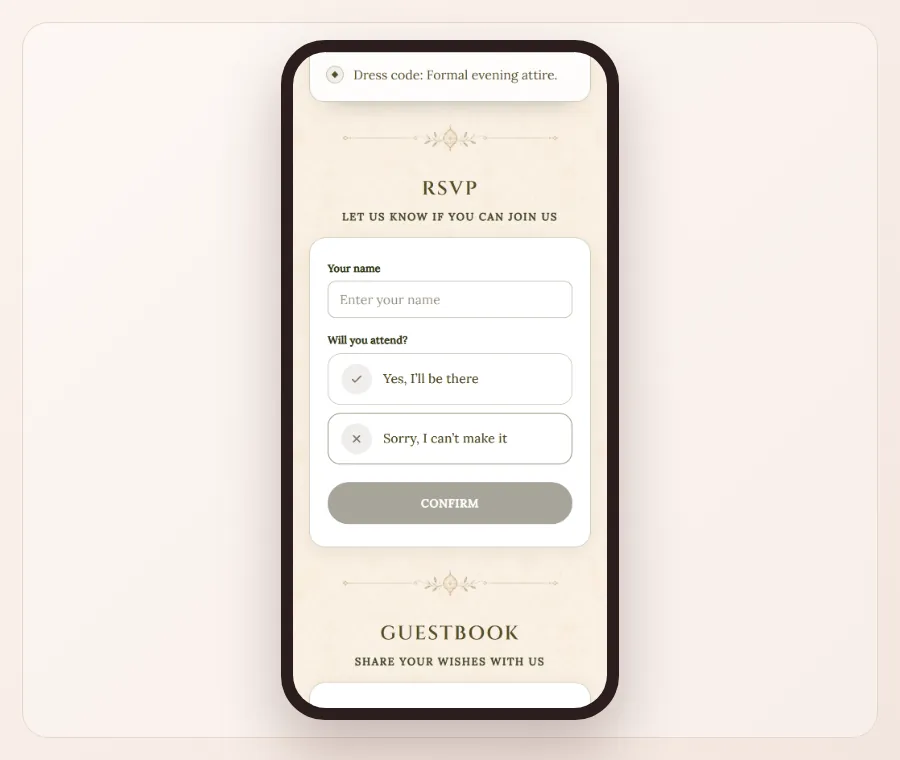
The guest opens their link in any browser, taps once to open the envelope, reads the details and reaches the RSVP section. They tap attend or decline, choose how many are coming and answer any questions you added.
On your side, the dashboard counts attending, declined, not yet replied, and how many guests have received their link. The guest list shows the same information name by name. You can export it as a CSV file. If someone hasn't answered, you can send a reminder from the list. It is not automatic.
Design yours free and add a few test guests to see how the links look.
What is the family link? #
Parents often have their own list. The family link lets them add their own guests themselves, so you don't type every name. Agree on a seat budget for each side first. Each guest still gets a personal link, with their name on the envelope.
What are good tips for naming guests? #
The name you type is the name the guest sees on the envelope, so it deserves a moment of thought. Some practical rules:
- Use the name the guest would use for themselves. "Aunt Rosa" is warm for family. "Dr. Haddad" suits a formal event.
- Name a household once. "The Hamilton Family" with five seats is simpler than five separate guests.
- Match your culture's customs. Titles, honorifics and family names vary widely. Ask a parent if you aren't sure.
- Be consistent. Choose a style, such as first name plus family name, and use it for every guest.
- Avoid nicknames guests wouldn't use publicly, because the envelope is the first thing they see.
- Check spelling. A misspelled name is more noticeable on an envelope than anywhere else.
- Mind the plus-one. If you name a guest "and guest", set the seat count to two.
For addressing conventions across cultures, see how to address wedding invitations.
How do you check that every guest got the right link? #
- Send the first links to two or three relatives and ask them to confirm that their name appears.
- Open one link yourself on a phone and check the name, date and map.
- Look at the "received" count on the dashboard after each batch.
- If you changed a name, press "Update" so the guest sees the new version on the same link.
Edits are saved privately, and guests see them after you press "Update". The link never changes. See editing an invitation after sending.
What does it cost? #
Designing and previewing are free, with no account. Publishing needs a sign-in with a code sent to your email and gives a preview link that works for 48 hours. To keep the permanent link, you pay once per invitation, with no subscription and unlimited guests and replies. The price for your country is on the pricing page.
Once the links are out, the next steps have their own guides: collecting RSVPs online, setting an RSVP deadline, reminding guests who have not replied and planning for no-shows. For a feature-by-feature view, see digital wedding invitation with RSVP.
Frequently asked questions #
Can a guest forward their link to someone else? #
Technically they can send it to anyone, since it is a link. The invitation is hidden from search engines, so only people who have a link can open it. If you want to control the count, set the seat limit per guest.
Can I send the same link to a whole family group chat? #
You can, but the family would share one name and one reply. Personal links are better when you want each household counted properly.
What if a guest loses their link? #
You can copy it again from the guest list and send it again.
Can I give someone a link without a name on the envelope? #
Add them with a general name, such as "Dear Friends and Family", and set the seats you want.
Do I need to send all links at once? #
No. Send in batches and use "Send to next" to keep track.
The bottom line #
A link for every guest gives each person a name on the envelope, a seat limit that fits and a reply you can trust. Browse Koroty's designs and add your first guests in the free preview.