
To make a digital wedding invitation: choose a design you both like, write the couple's names, the date and the venue, pick music if you want it, then review the invitation and create its link. After that, add your guests, send each one their own link on WhatsApp, and follow who is coming and who declined from one dashboard. You can change any detail later without changing the link.
This guide has ten steps in order, and every step comes with a picture of Koroty's own screen on a phone, so you see exactly what you will see. Designing and previewing are free and need no account, so you can open the designs page and follow along.
What do you need before you start? #
Before you open any tool, have this ready so you don't stop halfway:
- The couple's names, written the way you want them to appear.
- The hosts' names, such as the parents of the groom and bride, if your family usually includes them.
- The date, the day of the week and the start time.
- The venue's name and address.
- A few photos you love, if you want a photo of the couple or a small gallery.
- A first list of guest names and phone numbers.
If you are not sure how to word the invitation itself, read what to write in a wedding invitation for ready samples, or let the wedding invitation wording generator write a few versions with your names.
Step 1: Choose your invitation design #
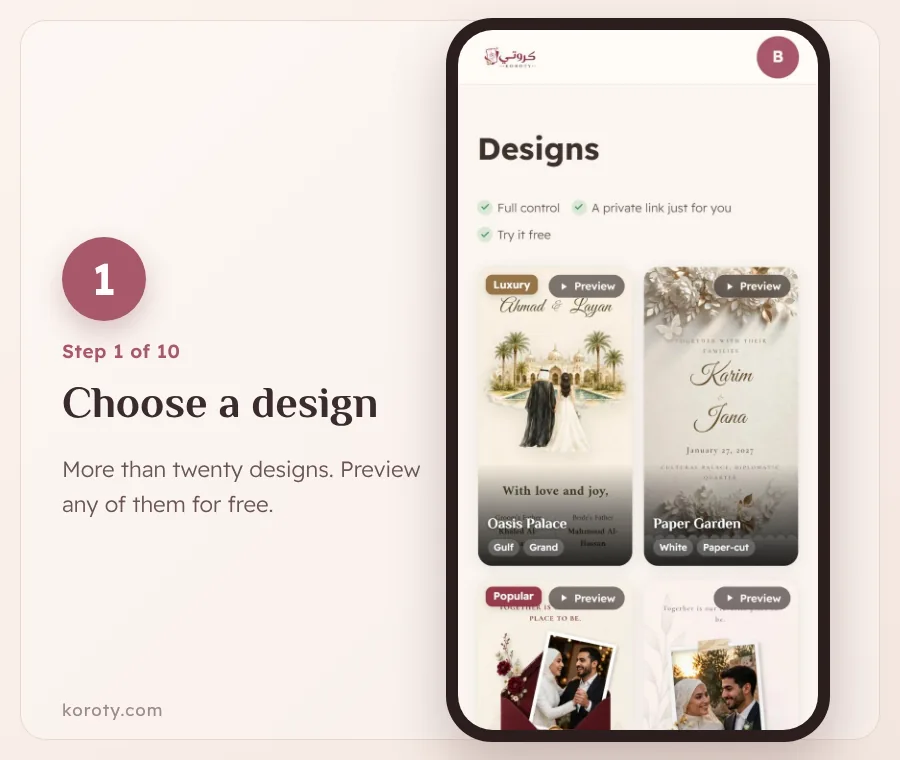
The design is the first thing a guest sees, so pick one that matches the feel of your wedding: grand, calm or simple. Koroty has more than twenty designs in Arabic and English, including envelopes that open at a touch, wax seals, floral arches, designs with the couple's photo and clean minimal ones. Tap "Preview" on any design to see it in full with sample names, then choose the one you like.
Don't worry about getting it perfect. You can switch designs later and keep everything you wrote: the names, date and photos move with you to the new design.
Step 2: Write the couple's names #
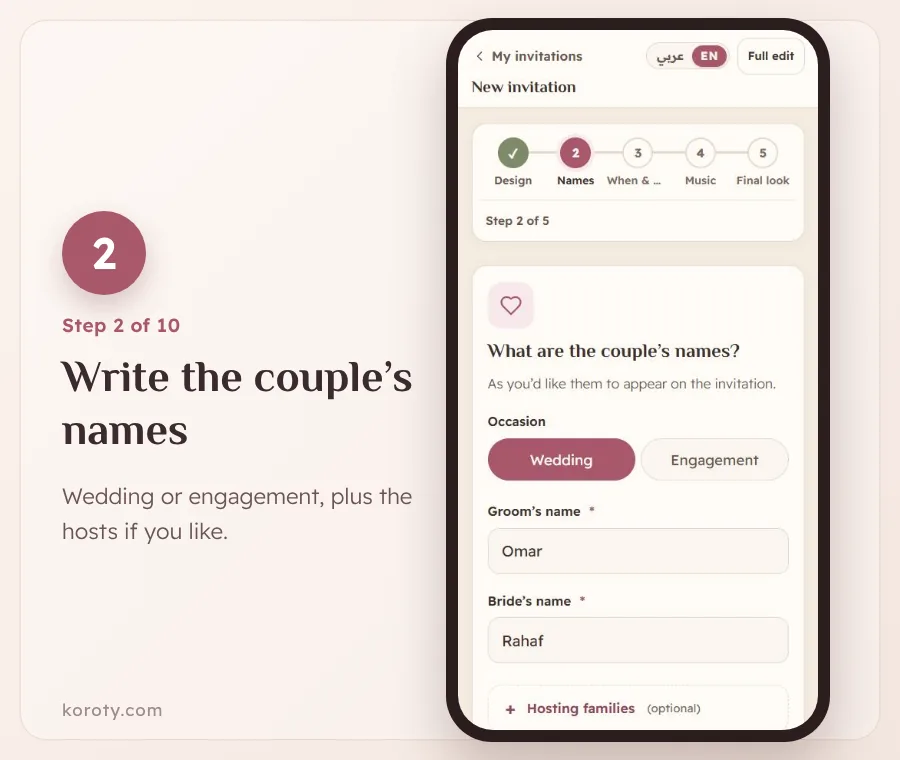
After the design, Koroty opens five short steps, and the bar at the top shows where you are. In the first one, choose the occasion (Wedding or Engagement) and type the groom's and bride's names as you want them to appear.
If your family usually names the hosts, tap "Hosting families" and add a title and name for each, such as "Mr." and then the name. This part is optional, and you can add it later.
Step 3: Set the date, time and venue #
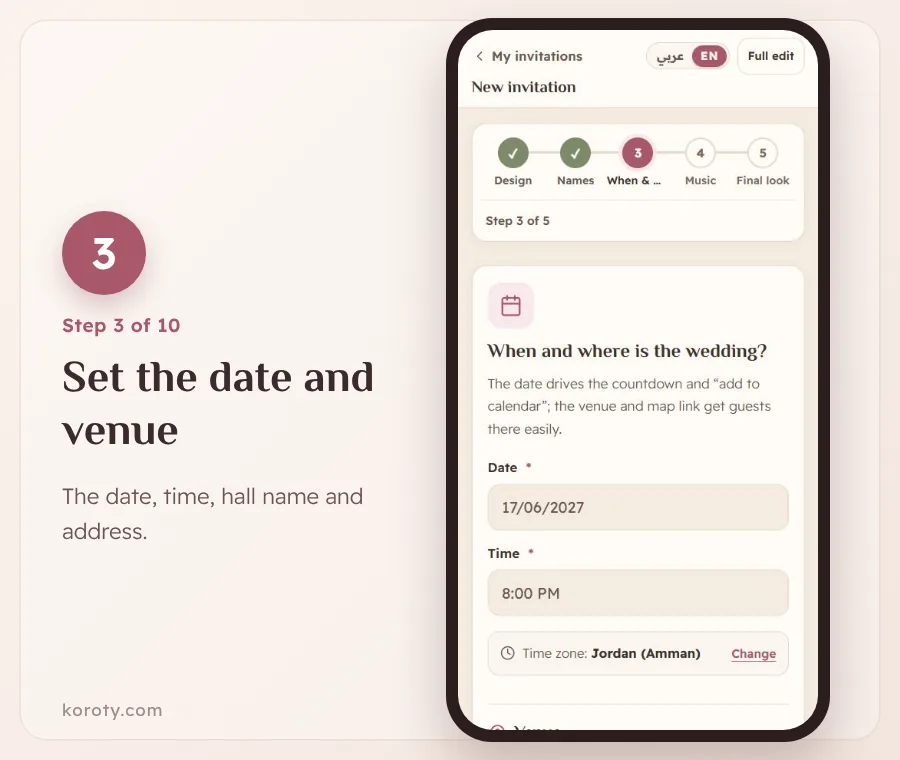
This is the most important step, because every guest is looking for two answers: when and where. Pick the date and time, check the time zone under them (for example "Jordan (Amman)"), then type the name of the hall or hotel and its address.
The date powers a countdown on the invitation and an "add to calendar" button, so guests don't forget. The address opens a map with one tap, so nobody has to call to ask for directions. To pin an exact spot on the map, read how to add the venue location to a wedding invitation.
Step 4: Pick the music #
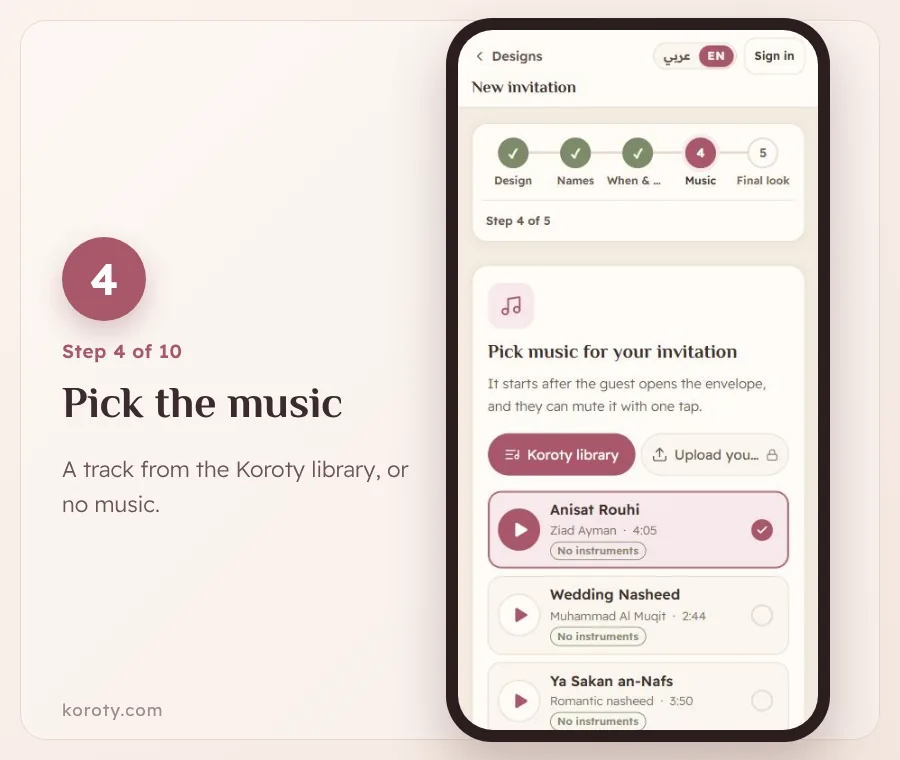
Choose a track from the Koroty library, which includes tracks with no instruments, and tap ▶ to listen before you choose. Or pick "No music" if you want a silent invitation. You can upload your own track after signing in.
The music never starts on its own: it plays after the guest opens the envelope, and they can mute it with one tap, so it never catches them off guard in a quiet room. There is more on this in digital wedding invitations with photos and music.
Step 5: Review your invitation #
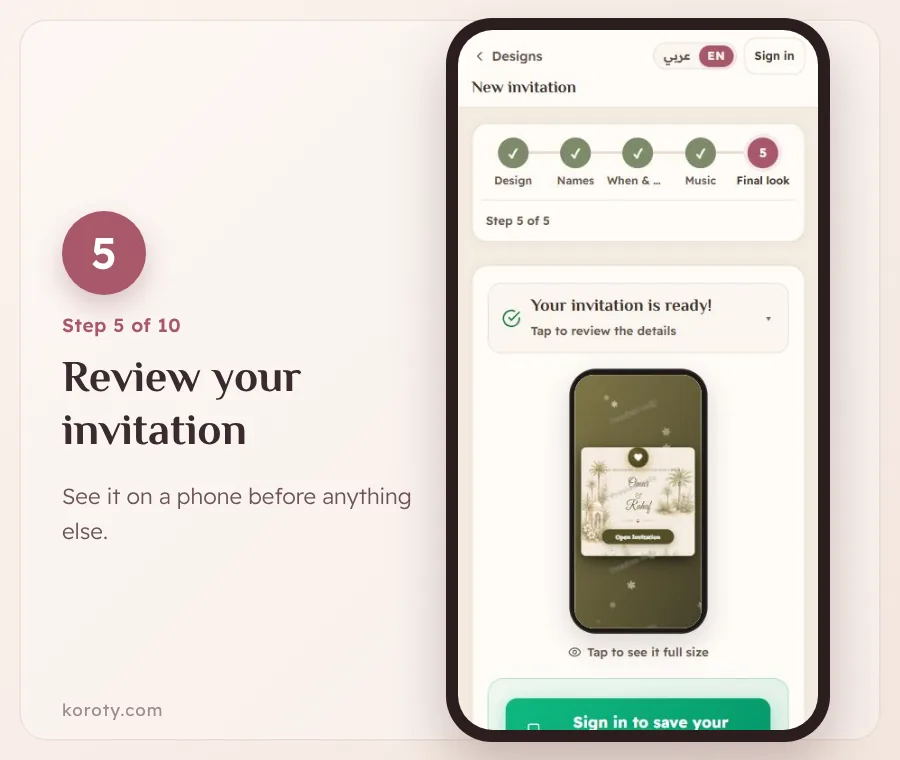
In "Final look" you see your invitation inside a phone frame. Tap it to open it full screen, exactly as a guest will. Check:
- The spelling of every name, especially the hosts.
- The date and the day of the week. Do they really match?
- The venue on the map.
- How it looks on a phone, since most guests will open it there.
Everything up to here is free and needs no account, so take your time trying and adjusting.
Step 6: Create your preview link #
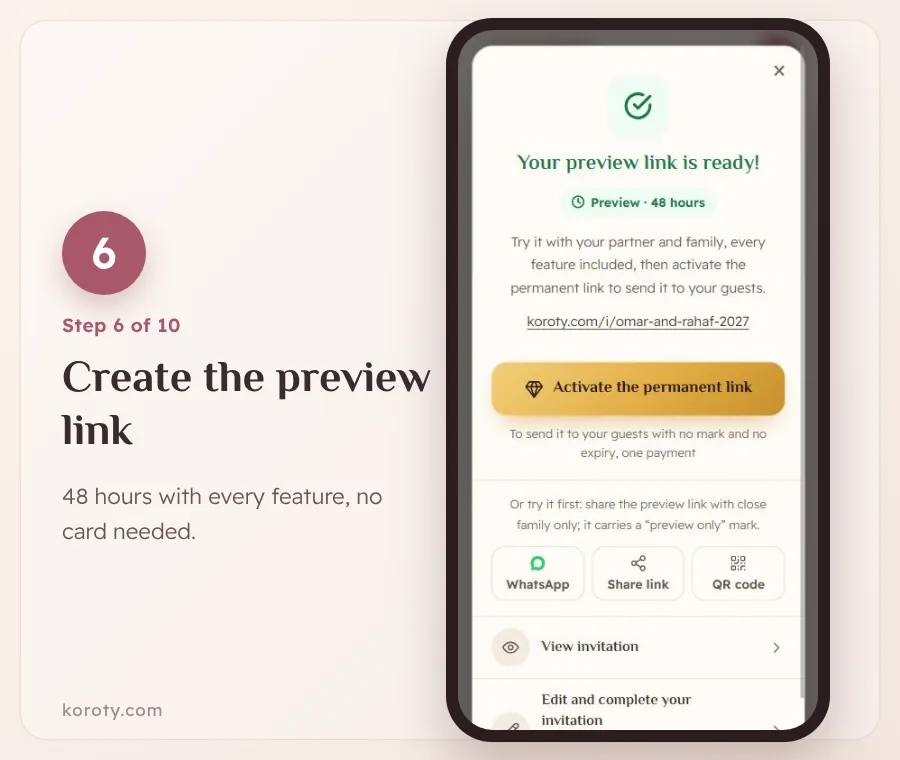
When you are happy with it, sign in to save it to your account: with a 6-digit code sent to your email, or with your Google account. No password and no payment card. Your invitation then gets its own address, such as koroty.com/i/omar-and-rahaf-2027, which you can change, and you tap "Create the preview link".
The preview link works for 48 hours with every feature, and carries a "preview only" mark. Share it with your partner and family using the WhatsApp, share link or QR code buttons, and try it together. The invitation never shows up in search engines, and only people who have the link can see it.
What happens after the preview, and what does it cost? #
Nothing is deleted when the preview ends: the invitation, its guests and their replies are all kept. When you activate it with one payment, with no subscription, the same link becomes permanent, with unlimited guests and replies, no label or banner, and the music and photo album, so there is nothing to resend. The price for your country is on the pricing page, and the details are in how much a digital wedding invitation costs.
What can a digital wedding invitation include? #
The first five steps are enough for a complete invitation. From "Edit and complete your invitation" you can add any of these sections. Only the names, date and venue are required:
| Section | What the guest sees |
|---|---|
| Opening screen | An envelope, doors or curtains with their name, opened with a tap |
| Couple and hosts | The names in the design's lettering, with your invitation wording |
| Date | The date and time, a countdown and an "add to calendar" button |
| Venue | The name, the address and a map that opens with a tap |
| Programme | The evening's items with their times, such as reception, zaffa, then dinner |
| Photos | A photo of the couple and a small gallery |
| Music | A track that starts after the envelope opens and mutes with a tap |
| RSVP | "Yes, I'll be there" or "Sorry, I can't make it" with the number of guests, plus your own questions if you need them |
| Wishes | Guests write a congratulation that appears on the invitation |
| Gift section | The gift options you write, such as a bank account or a wallet, with a copy button |
| Notes for guests | Such as the arrival time or whether children are welcome |
| Thank-you message | A closing line at the end of the invitation |
If you are unsure how to phrase a note about children, adults-only wedding invitation wording has polite options.
Step 7: Add your guests #
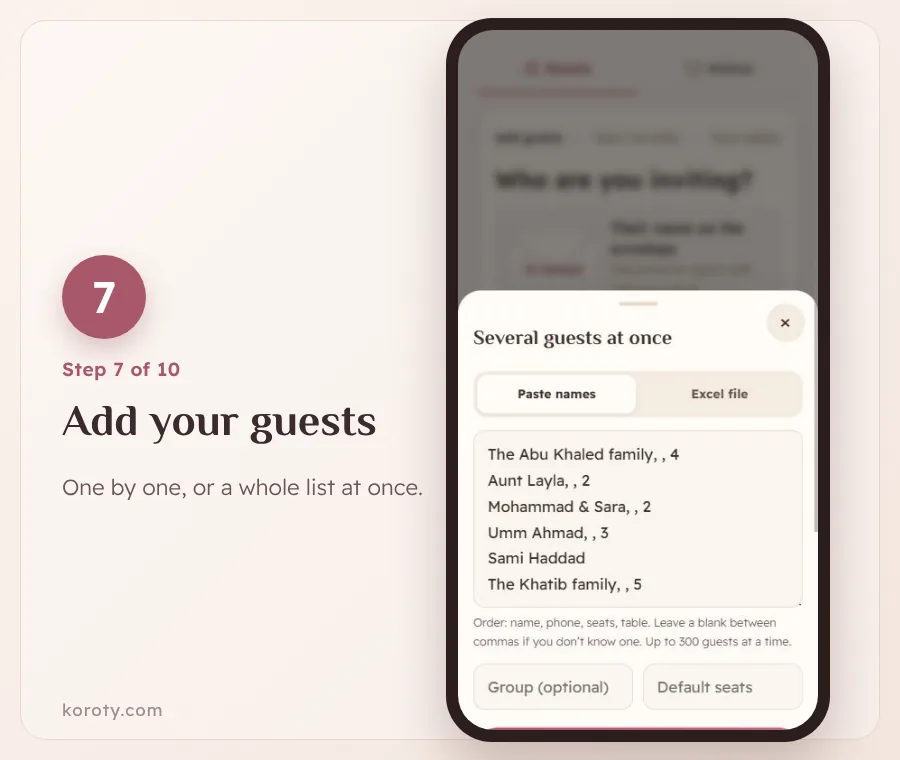
This is where one link becomes a personal invitation for each guest. Add them whichever way is easiest:
- One by one.
- By pasting a whole list at once: one guest per line, and after the name, separated by commas, the phone number, the number of seats and a table number if you want. Up to 300 guests at a time.
- From your phone contacts on Android.
- From an Excel or CSV file.
You can sort guests into groups such as "Groom's family" and "Bride's family", and set the number of seats for each guest. If the parents want to invite their own friends, send them the "Family link" so they add their guests themselves, without you copying names. For more on keeping the list in order, read the best way to manage your wedding guest list online.
Step 8: Send each guest their link on WhatsApp #
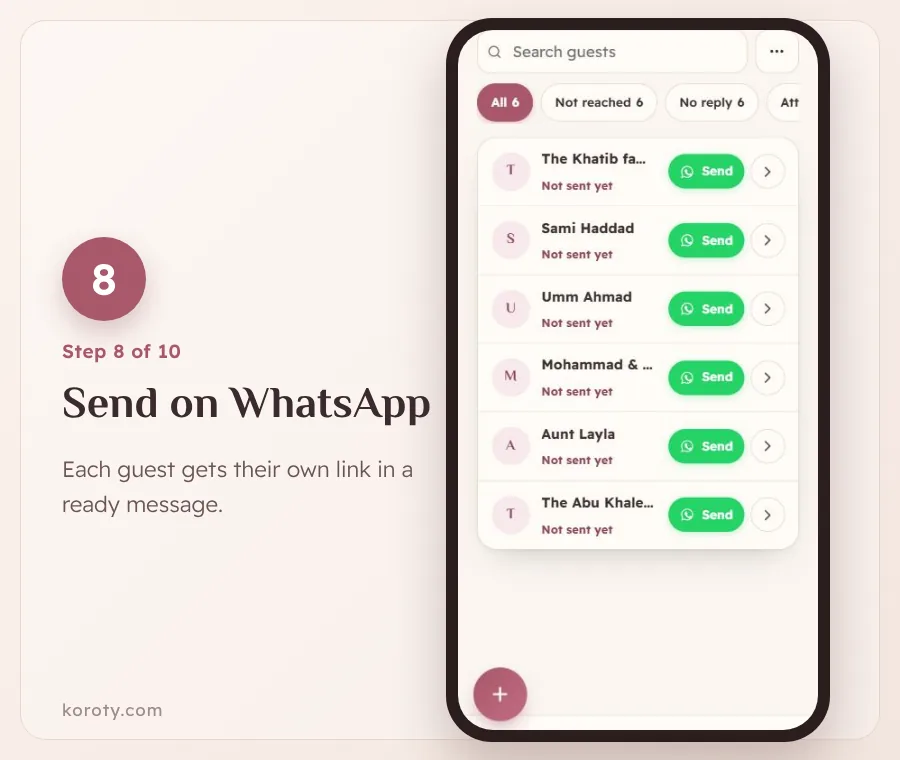
Every guest gets a personal link with their name. Sending is simple:
- In the guest list, tap "Send" next to a guest's name.
- WhatsApp opens with the message ready, carrying their name and link.
- Tap send in WhatsApp, then come back and tap "Send to next" to move to the next guest who hasn't received it yet.
You can edit the message text, and change the preview image that shows in WhatsApp too. For timing and wording tips, read how to send a wedding invitation on WhatsApp gracefully, and for ready messages, WhatsApp wedding invitation messages.
Step 9: Your guest opens the invitation by name #
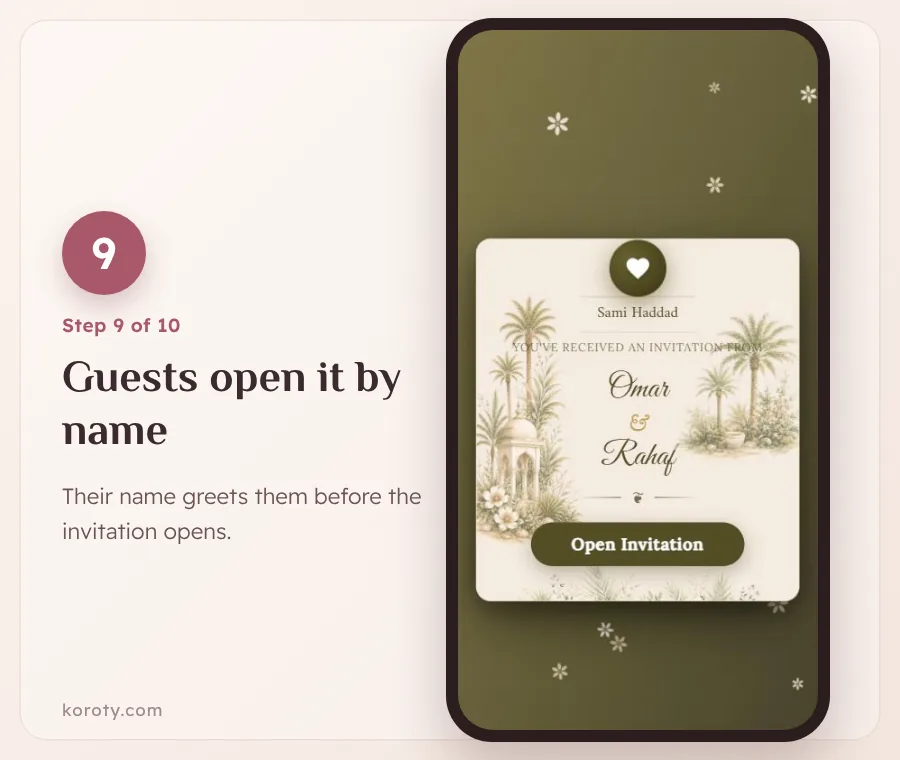
When a guest opens their link, they see their own name on the opening screen before the invitation opens, and that small detail makes the invitation feel written just for them. The link opens in any browser on a phone or computer, with no app and no account, and from the same page they can reply, write a wish and open the map.
Step 10: Follow the RSVPs #
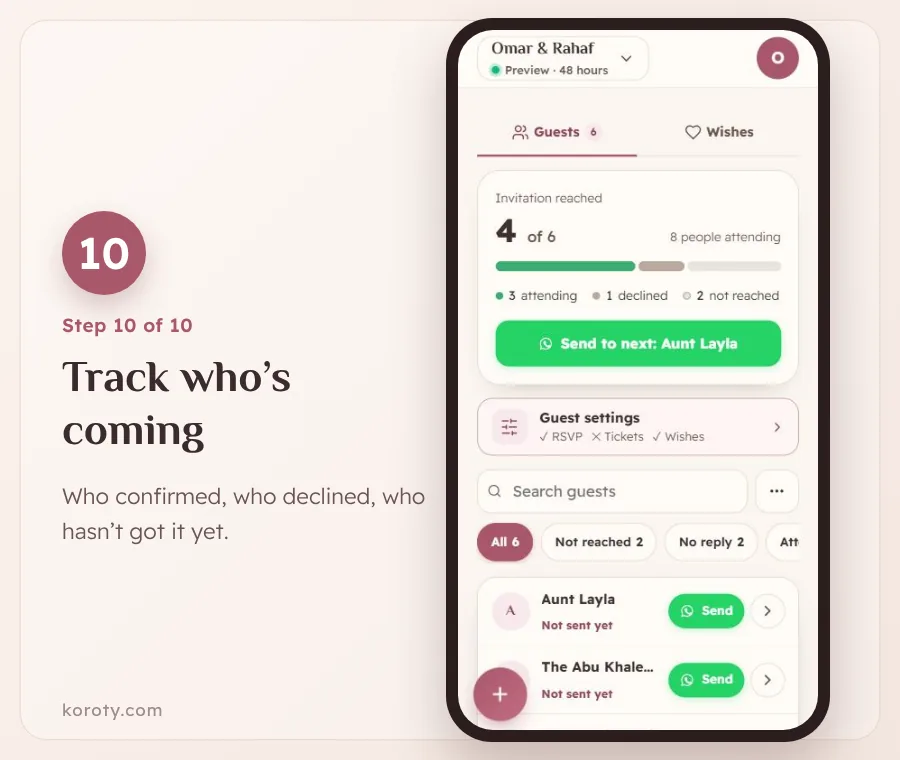
Once you send, replies start coming in. Each guest taps "Yes, I'll be there" or "Sorry, I can't make it" and chooses how many people are coming, within a limit you set for the whole invitation or for each guest. You can also add your own questions if you need more information.
Replies appear in your dashboard right away with clear numbers: how many guests received the invitation, how many people are coming, how many declined and how many haven't replied yet. For anyone who opened the invitation but didn't reply, send a reminder with the "Remind" button. You can download the list and replies as an Excel or CSV file to share with the venue or your planner. There is more on this in how to get an accurate wedding guest count.
Can you edit the invitation after sending it? #
Yes. Plans change: a time moves, a venue changes, an item is added. On Koroty your edits are saved, and guests don't see them until you tap "Update". The link stays the same, so there is nothing to resend. The details are in can you edit a wedding invitation after sending it?
The invitation stays online after the wedding with no expiry date until you delete it, and it stays hidden from search engines, visible only to people with the link.
Free tools that help before the invitation #
- Save the date maker: a picture for your status and stories that announces the date months before the invitation.
- Wedding invitation wording generator: ready wording with your names, by host and style.
- Wedding invitation card maker: a phone-sized picture card, for anyone who wants an image to send alongside the link.
- Wedding checklist: a plan from six months before the wedding to the days after it.
Common mistakes to avoid #
- Publishing before you review: a wrong date or a misspelt host's name is more embarrassing than couples expect.
- Sending one general link to everyone: you lose the guest's name on the opening screen and can't tell exactly who replied.
- Forgetting the plus-one limit: set it before you send so the numbers don't surprise you.
- A long WhatsApp message: the details belong in the invitation. The message is a greeting and a link.
The bottom line #
Making a digital wedding invitation only needs a clear order: a design, then names, date and venue, then a review and a preview link, then sending to each guest by name and following the replies. Start with step one now: choose from Koroty's designs the one that suits you both, and try it for free before you decide anything.
Frequently asked questions #
Do I need design experience to make a digital wedding invitation? #
No. The designs are ready, and you only write the text, choose the music and add photos. The preview shows you the result before you publish.
How long does it take to make a digital invitation? #
The first five steps are short and take a few minutes if your names, date and venue are ready. Adding guests takes longer depending on the size of your list, and pasting the whole list at once is the fastest way.
Is a digital wedding invitation free? #
Designing and previewing are free and need no account, and the preview link works for 48 hours with every feature after you sign in. To keep the invitation as a permanent link, you activate it with one payment and no subscription. The price for your country is on the pricing page.
Do guests need an app to open the invitation? #
No. The invitation is a link that opens in any browser on a phone or computer, with no app and no account.
Does the same method work for an engagement or a nikah? #
Yes. The invitation works for a wedding, an engagement, a nikah or katb al-kitab, a henna night and a reception, and you write the text however you like.
What if I change the date after sending the invitation? #
Edit the date, then tap "Update". Guests see the new date on the same link, with nothing to resend.
Can I change the design after writing the details? #
Yes. Switch designs anytime, and the names, date and photos move with you to the new design.